Applications Page Updated

Maintenance mode: After upgrading the site to ASP.NET 4.0 some of my applications no longer worked.  In addition, the geolocation service I use IPInfoDB changed to require an API key and the JSON interface slightly changed.  I’ve updated the applications so they work now, thanks for your patience!

You can find the applications page here or click on the “Applications” tab above.

Digitize with Windows Phone 7, Gmail, and Handyscan


hd7I’ve been using an HTC HD7 running Windows Phone 7 for 6 weeks now, and I love it, rarely missing my iPhone.  I discovered a very useful technique to digitize all my important papers and receipts using the phone, an application called Handyscan, and Google Gmail.  This method allows you to scan papers with the phone, send the result as a .PDF via email to Gmail, and auto tag it for easier retrieval later.  Here’s the steps:

  • Set up a rule in Gmail under Options->Filters and set the parameters for any email with the word “Handyscan” in it which has an attachment to apply a label like “ScannedDocs”.
  • Install the Handyscan application ( JDB Pocketware Handyscan ) onto the phone and start it up by clicking the “Scan New Document” button.
  • Take a picture of the document/receipt.  The new Windows Phone 7 has a good camera with LED flash so the results are excellent.
  • The application presents three image optimizations for you to choose from, select the one which looks best to you.
  • Save the picture in Handyscan and name it something logical related to the document…I also add the month & year at the end for future reference.
  • Use the application’s menu (the three dots along the bottom right) and email the picture in Handyscan as a PDF (you could also leave it as a .jpg) to your google email account.
  • When Gmail receives the email it will apply the label, making it easier to find later.


I’ve used this method to archive and digitally store lots of documents in the cloud for later retrieval and only takes a minute to complete…give it a try and see if it’s useful to you.

Note:  The application currently costs $3.99 but there is a light version…I’m not associated with the company, just a satisfied user 🙂

We Don’t Need No Stinkin’ 3rd Party Controls

A recent client application used some 3rd party controls which gave nothing but trouble.  They had a different programming model to learn, were expensive, and seemed buggy with various design time errors grinding my PC to a standstill.  They were primarily used to pop-up a modal gridview search results panel with a “waiting” spinner while loading and allowed the user to select an item to refresh the primary page underneath.

I’m generally not in favor of for pay controls because of the maintenance, distribution, reliability, and programming issues related to them.  You’re locked into a single upgrade path and can’t switch back without rewriting your app.  I began to wonder how to simulate this functionality using more standard techniques with the Ajax Control Toolkit, jQuery, and normal gridview and panel controls.

The result is a small sample ASP.NET page which allows the user to search for items (or leave blank for all items) and have results “pop” up in a modal gridview panel.  The user selects an item and the selected item details are displayed below the search box.  In real life, an ID could be saved allowing the parent to look up or fill in details for the selected record.  The panel could be styled to look much nicer, but this gives a basic approach.  The “Applications” tab contains more details, or click here for the applications page,

Here’s the sample application, or you can examine the code here.


BrowserSpy – A Browser Capability Utility


The applications page has been updated with a new utility, BrowserSpy, which demonstrates how much information can be retrieved from just the browser Request object.  Over 100 items can be read from your browser settings and location data, even if you turn cookies off.  No javascript is used in this example, it’s all ASP.NET (server side)- any site can get this information about your browser, and track it’s uniqueness across the internet since most people do not change their browser settings.  The applications page is here:  applications page  or use the “Applications” menu at the top.  It can be accessed directly here:  Browserspy

Trying instant Bing & Twitter Search with ASP.NET


I’ve been learning and writing a lot of ASP.NET code the past couple months and thought it was time to try a fun project.  This Bing and Twitter search sample application uses basic web API’s to retrieve search results on a character by character basis.  Unfortunately ASP.NET isn’t nearly as fast as client side scripting (like Google instant) but I gave it a try with server side processing.  Try it out- clearly, this type of application works best on the client side!

You’ll have to pause a bit between keystrokes to see results on the screen but they’ll eventually show up.   For the Bing search you can choose between Web and News results. A bonus- no ads, no cookies stored, no privacy issues 🙂

Here’s the sample Techybit Quick Search page.

Here’s the code for the application.

Tech Tips from Appdev to Virtual PC

Quick Tips on Virtual PC development, LDAP, Training, Security, and eBay

virtual

Just an assortment of hopefully useful miscellaneous items from things I’ve been working on lately along with resources for further review.

  • Virtual PCs (VPC): If you’re in consulting you will find it necessary to develop programs on various platforms- Windows 2003, 2008, XP, Vista.  The client doesn’t always have these available for testing purposes…that’s where the invaluable virtual PC comes into play.  By purchasing a Microsoft Technet subscription for $200/year you’ll get access to download all versions of Windows OS’s and tools.  This in conjunction with Microsoft Virtual PC software will allow you to run any OS inside the virtual environment along with necessary tools.  These virtual PC’s can take up quite a bit of disk space, so it’s a good idea to also buy a small USB external drive to store these images.  This has the advantage of providing multiple virtual images on a small portable drive you can use on almost any PC.  I literally couldn’t do my job without these tools and rely on them every day.
  • Getting VPC 2007 running on Windows 7: I found there are a few quirks when installing and running Microsoft Virtual PC 2007.  Firstly, if you’ve already installed the newer Windows Virtual PC on Windows 7, you’ll have to UNINSTALL it via the control panel applet (clicking on the Windows components will show this option, it’s not in the normal list of programs).  If you do not do this, you will get errors when running VPC 2007.  Next, when running make sure you always run VPC as an administrator (right click on the program icon and choose “Run as Administrator”), otherwise you’ll get an error that the virtual hard drive is read only and other cryptic errors.  Once I did those two things, the program runs flawlessly!
  • Server 2008 and Active Directory/LDAP lookups: I’m currently working on a prototype webapp which takes the current logged in Windows user, looks up that user in active directory, and pre-fills fields with user info such as full name, email, and phone number.  To do this, first create a VPC (see above) for Windows Server 2008 and Visual Studio.  You’ll also have to set up active directory and a domain controller on that test image.  Then, refer to the following article I found which covers this topic in great and useful detail: http://www.codeproject.com/KB/system/everythingInAD.aspx .  The code is remarkably simple in .NET 3.5…a definite improvement over 2.0.
  • Online video training:  I’m constantly studying various Visual Studio features for certifications.  I find that reading books or on-line articles extremely boring and recently purchased a 1 year subscription to AppDev online training. You can occasionally find deals to get full access to all classes for $1000, otherwise you can purchase just what you’re interested in. I find the video training really engaging and a nice complement to traditional book studying.  This in conjunction with transcender practice tests gives excellent coverage for the Microsoft certification exams.  Note- I’m not affiliated with these companies, just a happy customer.
  • Windows Phone 7 Development:  Microsoft’s new mobile platform is shipping soon and it looks to be very competitive.  Here’s some more info from Paul Thurrott’s site: Hands On With Windows Phone 7.  There’s free tools available now to develop applications, I haven’t tried them out yet but will do so eventually: http://developer.windowsphone.com/�
  • eBay, PayPal, and the USPS: I recently sold something on eBay…it’s been a while and was really happy with the transaction. The whole process is now seamless and user-friendly from listing through payment and even to shipping via USPS.  I was pleased to learn that after you’re paid in PayPal, you can print (and pay for) a shipping label right from PayPal including insurance.  Both you and the buyer gets an email receipt with confirmation number. The USPS flat rate priority mail boxes (provided for free from the post office) are the way to go…you can stuff them with any amount of stuff for about $10, apply your shipping label, and even have your mail carrier pick it up for you.  Nice!
  • Security Updates:  The hacker conference Black Hat is going on now, and so the annual parade of security flaws uncovered is flowing fast. This is just a friendly reminder to keep everything up to date as there’s been serious flaws found in FireFox, Windows (a really bad one involving .lnk shortcuts), Flash, and Itunes/Quicktime.  Don’t waste a moment downloading and installing the latest updates for these programs.  And why you’re at it, have you updated your backups lately?  I thought so….

iPad in my Pad

iPad

Having used my wi-fi iPad for a couple weeks now, I wanted to write some thoughts down on how I’m using it, favorite apps, and some tips.

General Thoughts

The iPad seems geared for ease of use for video/audio use, and it does that extremely well in a fun, refined fashion.  The touch interface is very intuitive, smooth, and responsive.  The fact it works like my iPhone makes it very easy to figure things out and I’m finding that watching video, web surfing, and reading books/magazines are preferable here over my laptop.  The instant on and portable nature of it’s operation is very appealing.  This is a very fun, immersive gadget (albeit expensive starting at $499).  On the downside it’s heavy (1.5 lbs) making one handed holding difficult for long periods and the highly reflective screen is annoying.  Not all web pages display correctly and much video content is unplayable due to Adobe Flash not being supported.

iPad Applications

The i-universe is all about the apps and there’s plenty to choose from even at this early stage.  Some of the ones I use a lot lately include:

Netflix – If you have a Netflix subscription this is a MUST.  You can easily stream the “instant play” items in your queue to the iPad, and the bright 9 inch screen plays videos gorgeously.  The speaker isn’t too bad either and is much louder than the iPhone’s.

GoodReader – There’s no native support for PDF viewing or many other filetypes, plus no real concept of a filesystem so this app category is important.  It displays PDF’s really well and supports Microsoft Office files also.

TweetDeck – My favorite twitter client because in portrait mode you can scroll through tweets on the bottom and when clicked, they show up in a window at the top without leaving the application.

ABC Player – I hope all streaming video players are this good.  Currently the only network with an iPad app, ABC programs are easily accessible and playable with clear fidelity.

PhotoFrame HD – This one surprised me because most photo programs are worthless, but this takes photos from the Flickr service (either your own or random public ones) and displays them.  You can customize the tags used to select pictures.  All the pictures are interesting, professional, and oddly fascinating to wonder what will come up next.

NPR – An innovative design makes this program stand out.  Three independently scrolling sections put NPR content in a “newspaper” format for easy reading, yet you can access the vast library of audio content on demand with a couple finger taps.

TWiTPad – If you’re a fan of Leo Laporte’s This Week In Tech (TWIT) network (and you should be!), this will allow access to archived programs, show schedules, and the live video stream whenever you need a tech news fix.  I particularly like Windows Weekly, This Week In Google, and This Week In Tech.

NYT Editor’s Choice – The New York Times paper translated to the tablet in a very visually appealing and easy to use fashion.  You don’t get all NYT content, but a selection of stories updated throughout the day.

iPad Accessories

Eco-Vue Case from Marware

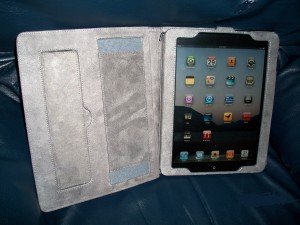
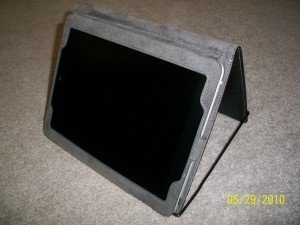
The picture above shows my iPad in the Eco-Vue case ($45), and I really like it.  It’s a very sturdy leather-like case which has two nice features- a band to slip your hand through to make holding easier, and a small extension which holds the pad in landscape mode at a slight angle for easy typing/viewing.  We also made a clever and cheap holder from a wire hanger which allows more upright viewing.  See the picture for more details but essentially you just hook one end into the other on the case to hold it open.

My video demonstrating wire hanger holder (youtube).
iPad holder

Griffin Screen Kit

This screen protector has a slight matte finish which is perfect for taming that highly reflective screen.  You don’t lose any of the touch responsiveness or color, but can now use it in a location which has light sources that would normally make it difficult to see the screen.

Griffin Video out Cable

Some applications such as Netflix, Youtube, and Video player can display their content on an external screen.  Any iPod video out connector should work (you don’t need Apple’s expensive iPad version) and you can then see your videos on any external screen/TV.  The Griffin I bought also has a charger, so you can charge while watching the video…a nice touch.

I’m sure there will be updates as I use the iPad more, and I’ll occasionally add or update information in this post.


The Nearly Forgotten Baltimore Skywalks

And now for a non-tech diversion:  I recently discovered a little used yet interesting section of downtown Baltimore- a series of skywalks and skybridges crisscrossing many blocks and leading through hotels, office buildings, and parks.  It’s actually possible to use these walkways and go from Harborplace at the Inner Harbor up to the convention center and finally Charles Plaza several blocks away over the loud and constant traffic.  It’s peaceful, fun, and slowly disappearing as Baltimore has over the years been demolishing these bridges.   I took some pictures with my iPhone  and wrote up a summary.  You can find the article in the “Misc” section of this blog or by clicking: The Nearly Forgotten Baltimore Skywalks

Why Closed Systems Like iPad Will be Successful

wire fence
Wire Fence

There’s lately been much discussion about closed vs. open software systems, particularly as it relates to the smartphone, tablet , and video game system markets .  The iPhone and iPad (and to an extent their desktop/laptop systems) are seen as “closed” since Apple tightly controls how applications are developed, approved, and sold on those platforms.  Other systems such as Microsoft and Google are seen as more “open” since they do not have such controls on applications developed for their products.  Which approach is better and will be the most successful?

Most techies (and therefore most discussions recently on the web) think everything should be open…that having the    flexibility, choice, and freedom is the only way to go and is the BEST way for everyone.  Most people, though, are only casual tech users or even tech ignorant and they don’t care- they just want their gadgets to work like an appliance without fussing over it.

Since the market for casual or non-tech users is much larger than the market for early adopters and tech savvy users, systems like the iPad will appeal  to the casual market and be incredibly popular.  Most people don’t want to mess with files, folders, anti-virus software, backups, driver configuration, and third party peripherals – they just want to instantly have their gadget turn on, have apps which launch quickly, and have a consistent and pretty interface to the internet and social networks.

The concept of “technology appliances” meet these goals.  They can be expanded within constraints set by the manufacturer, but these gadgets are now web enabled, which makes them much more powerful even with these constraints.  The information is open but is presented within a constrained, consistent, easy-to-use interface.

Open systems like Google’s Android OS are great for techies and can be infinitely configured, tweaked, and controlled but that does lead to more crashes, instability, battery usage, and a general mistrust of what apps are really doing.  They can do anything and aren’t filtered by a single source, but instead rely on the community for this function- it may take some time for a rogue piece of software to be discovered and for others to get the word out about it.

While the technical elite will still buy these closed platforms for curiosity and review, it will be the huge masses of casual technology users who now have a web-enabled computer appliance which is easy to use that will make systems like the iPad hugely successful and popular over the coming years.